

Ask, follow up, refine
Follow-ups work within one topic. When you switch to an unrelated question, start a new chat so earlier questions don't shape the new answer.
Data Messenger remembers the conversation, so you can build on a result instead of retyping your whole question. Ask a follow-up, correct a result in plain words, or ask it to double-check — all in the same chat.
Ask your question
Type your question in the Start a new query... box at the bottom of Data Messenger.

Result:
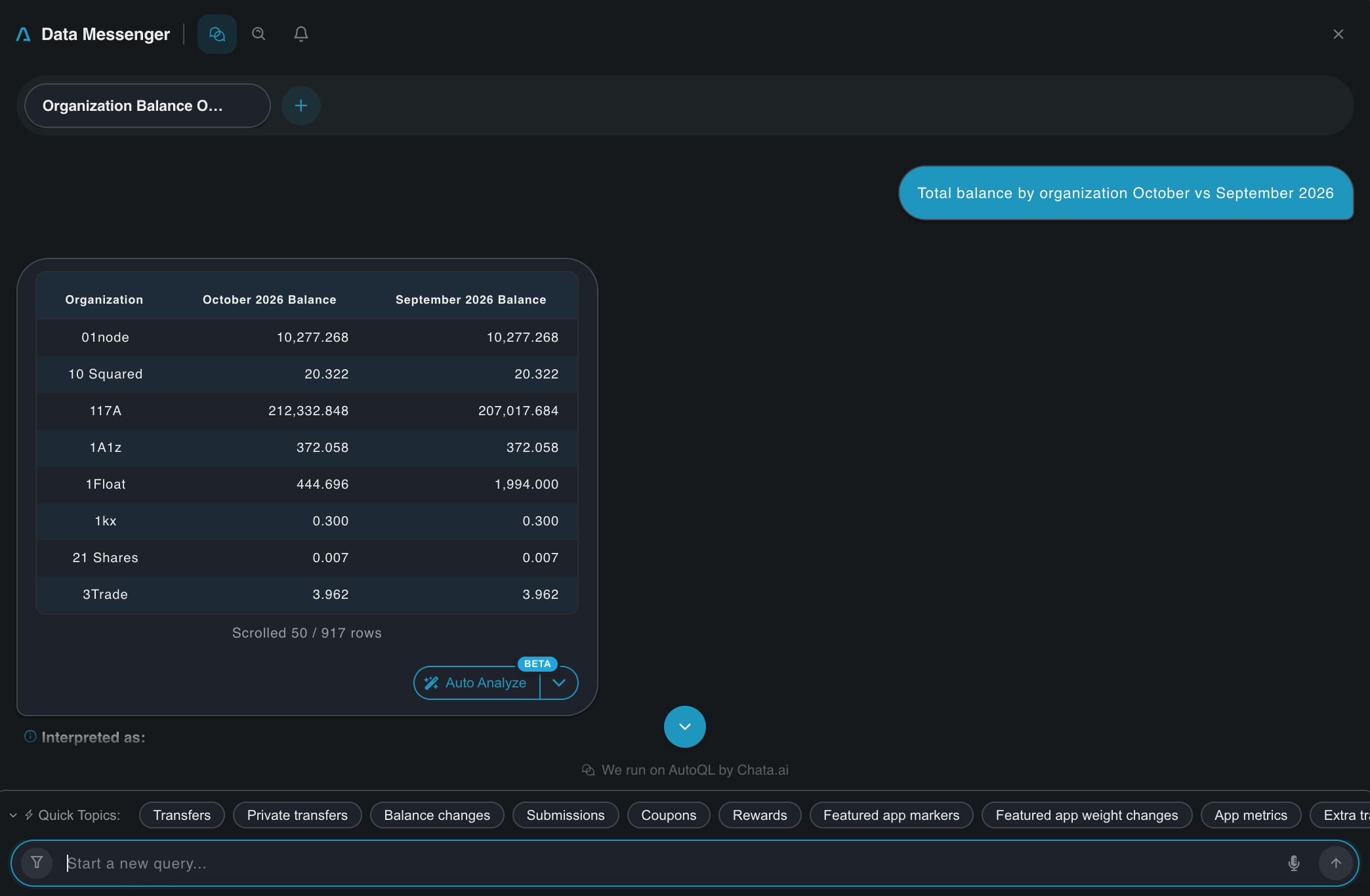
Follow up
Build on the result with your next question.
Example: "Total balance by organization October vs September 2026" → "Which ones had the biggest drop?"
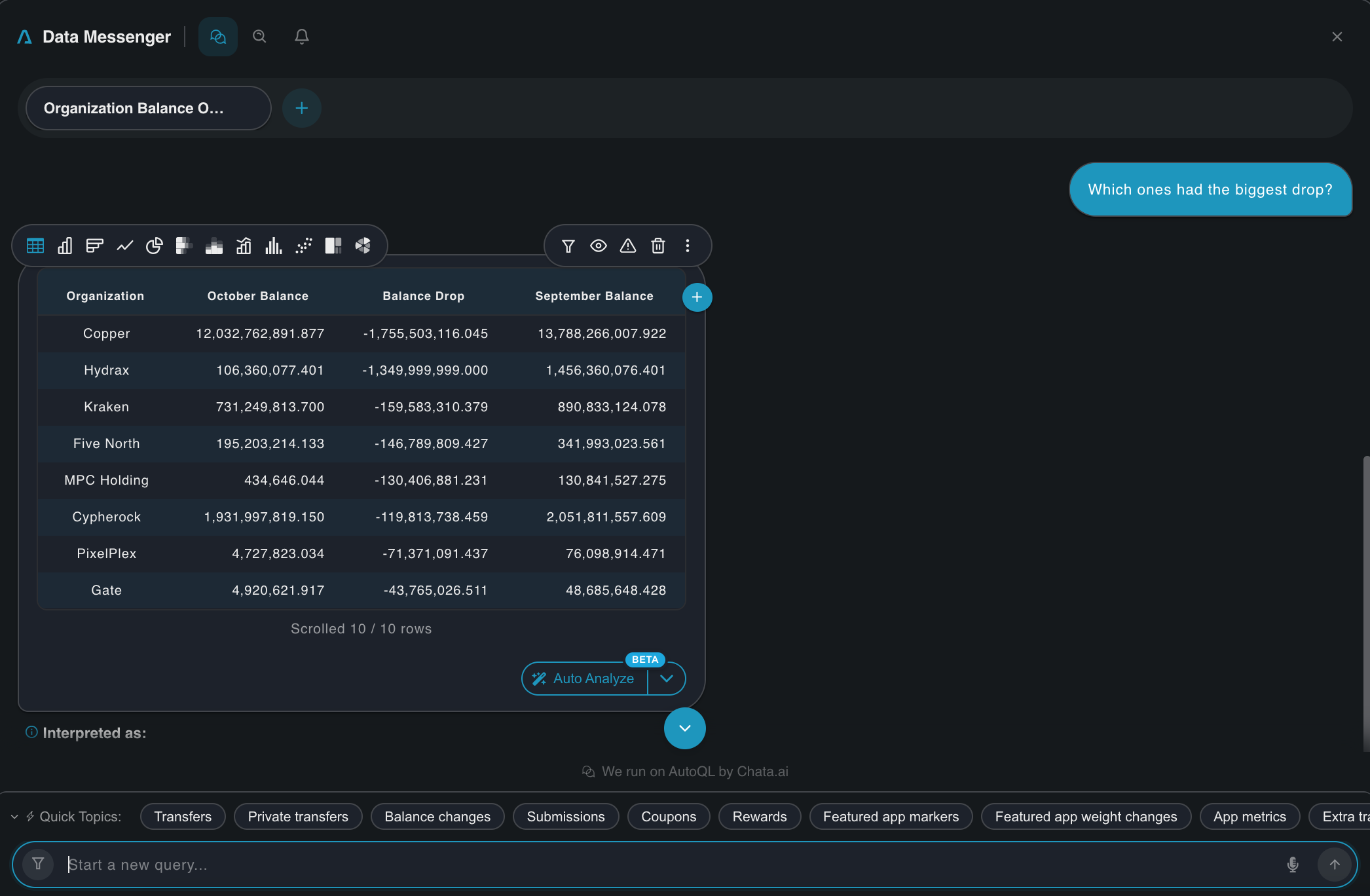
Check the interpretation
Every response includes an Interpreted as description: a one-sentence summary of what Data Messenger looked up. Read it before the numbers, so you can tell right away whether it understood your question.
Example from the app: for "Total balance by organization October 2026 vs September", the description reads "Monthly wallet balance totals for organizations in September 2026 and October 2026, showing October balances alongside September balances for comparison."
When to correct it: you followed up with "Which ones had the biggest drop?" and the description reads "Top 10 organizations with the largest decrease in total monthly wallet balance between September 2026 and October 2026." The measure and months are right, but it limited the list to 10. If you wanted every organization whose balance dropped, tell it (see the next section).
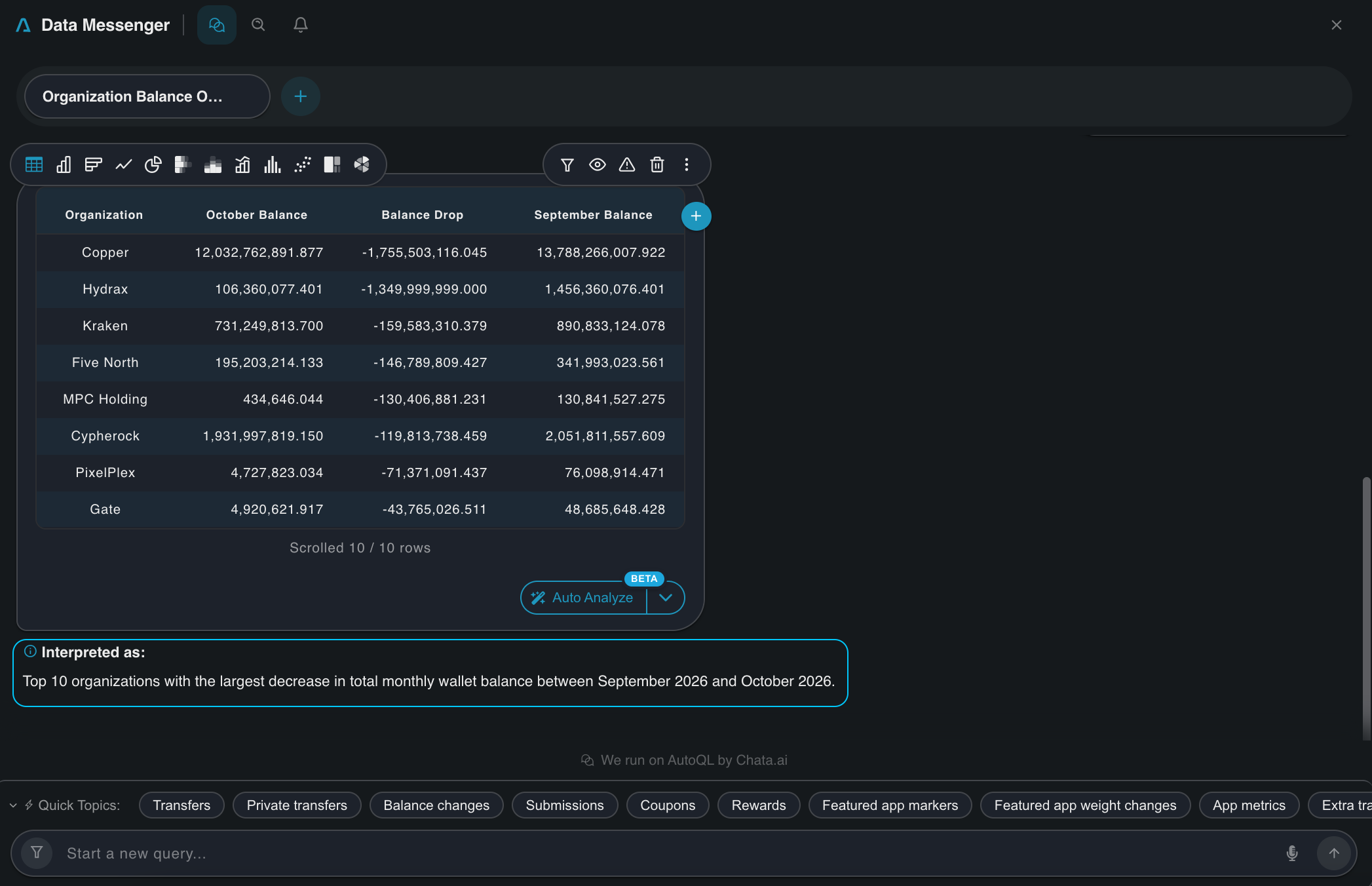
Correct a result in the chat
If a result misses the mark, say what you meant in the chat. A short "no, X not Y" is enough — you don't need to retype the whole question.
Example: "Not just the top 10. Show every organization whose balance dropped."
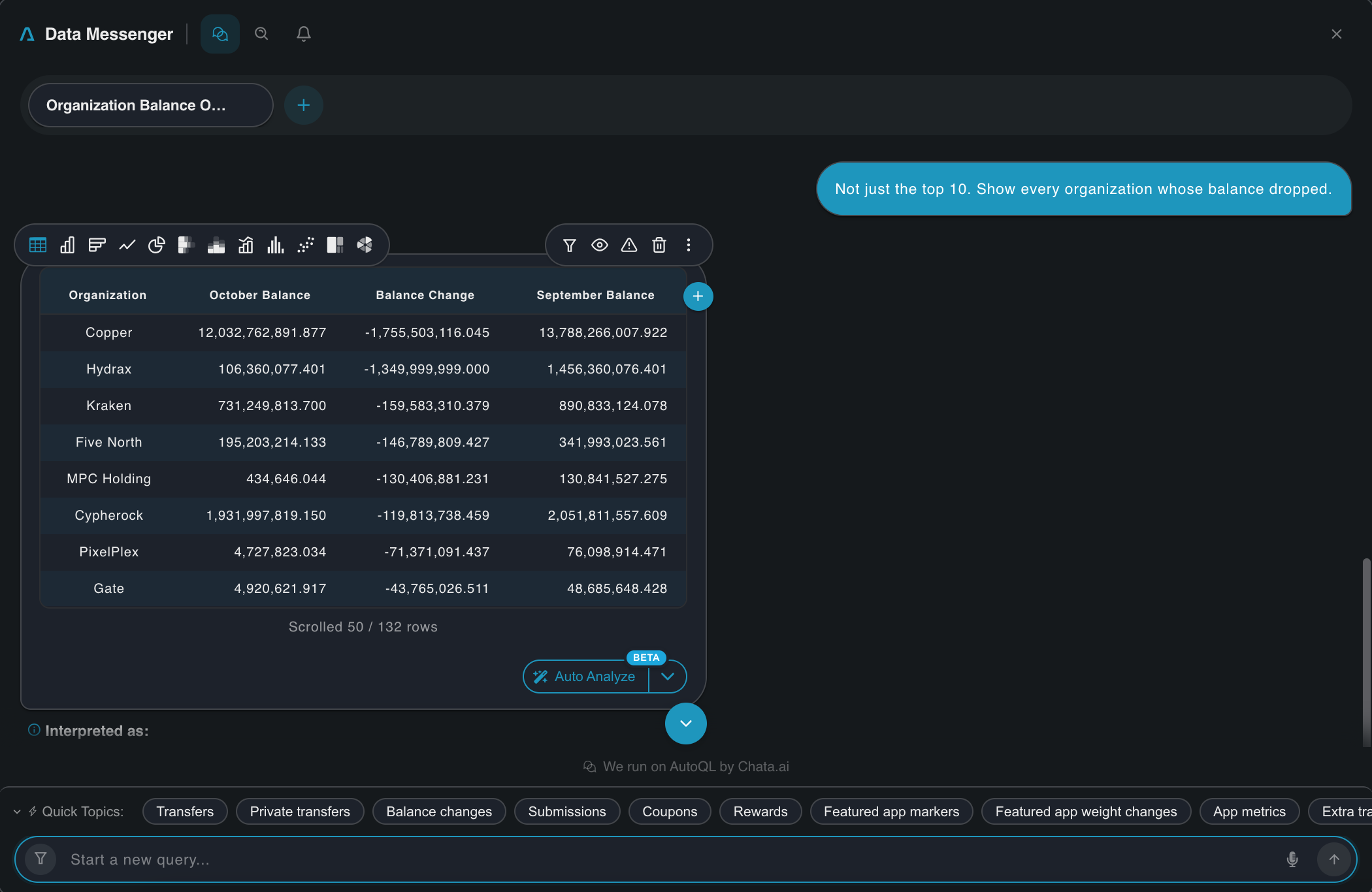
The more specific you are, the faster it gets fixed. Name the part that's off — the measure, the ranking, the grouping, or the time range:
| What's off | Say something like |
|---|---|
| Measure | “The change in balance, not the October balance” |
| Time range | “Compare all of Q3, not just September” |
| Grouping | “Group by wallet, not by organization” |
| Ranking | “Sort by the change, largest drop first” |
| Filter | “Only include Orb 1 and ORBK” |
Ask a question to check
Not sure the result covers everything you asked for? Ask. Data Messenger checks the result against the conversation and fixes it if something is missing.
• "Is this comparing October to September?"
• "Does this include every organization?"
Report a problem
If a result still looks wrong after you correct it, or something seems off, report it. Your report goes straight to our team and helps make Data Messenger better.
-
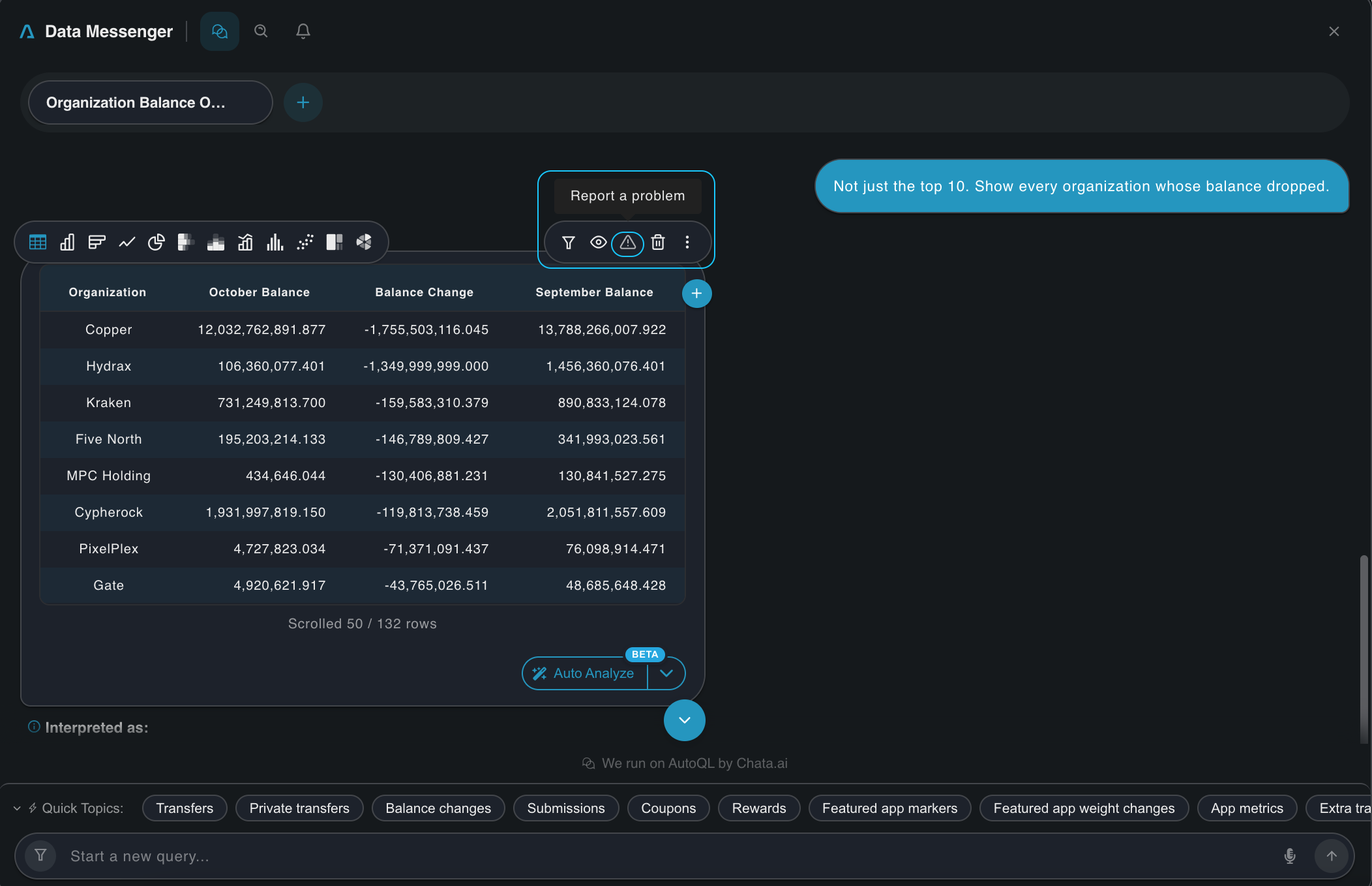
Hover over the response to show its toolbar.
-
Select the Report a problem icon (the warning triangle).
-
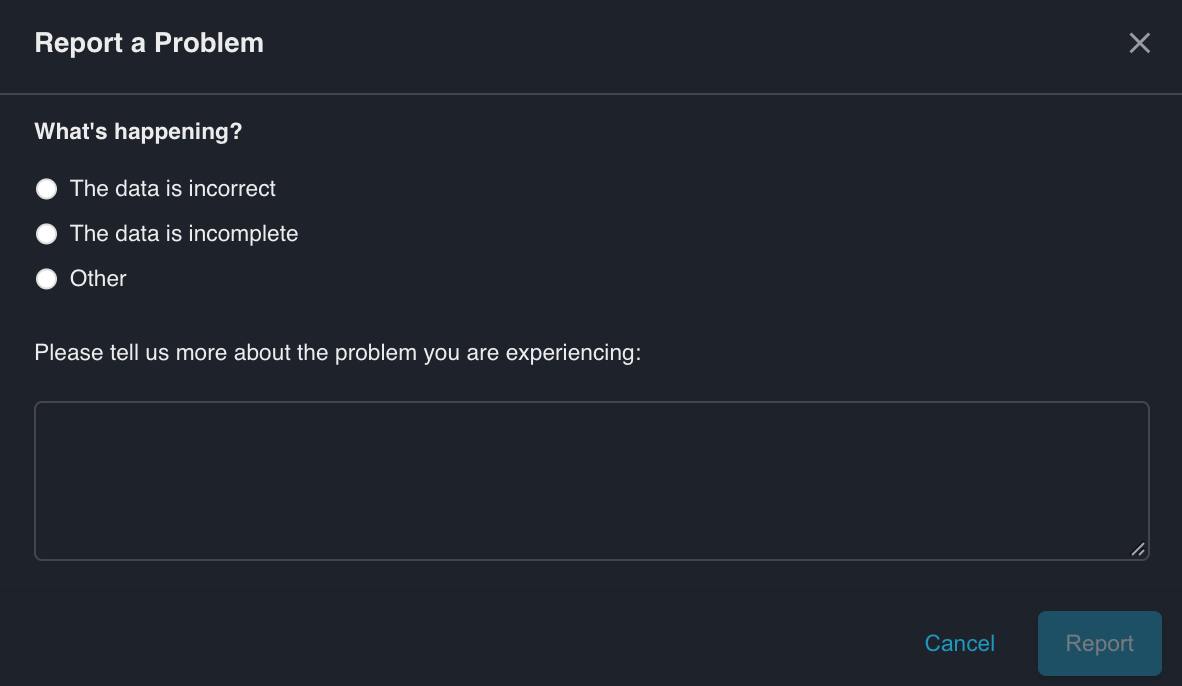
Under What's happening?, choose The data is incorrect, The data is incomplete, or Other.
-
Describe the problem in the text box: what you asked, what you expected, and what you got.
-
Select Report.
Start a new chat when you change topics
Follow-ups only work within the same topic. If you move from traffic purchases to something unrelated, like daily balances, start a new chat so your earlier questions don't affect the new answer.
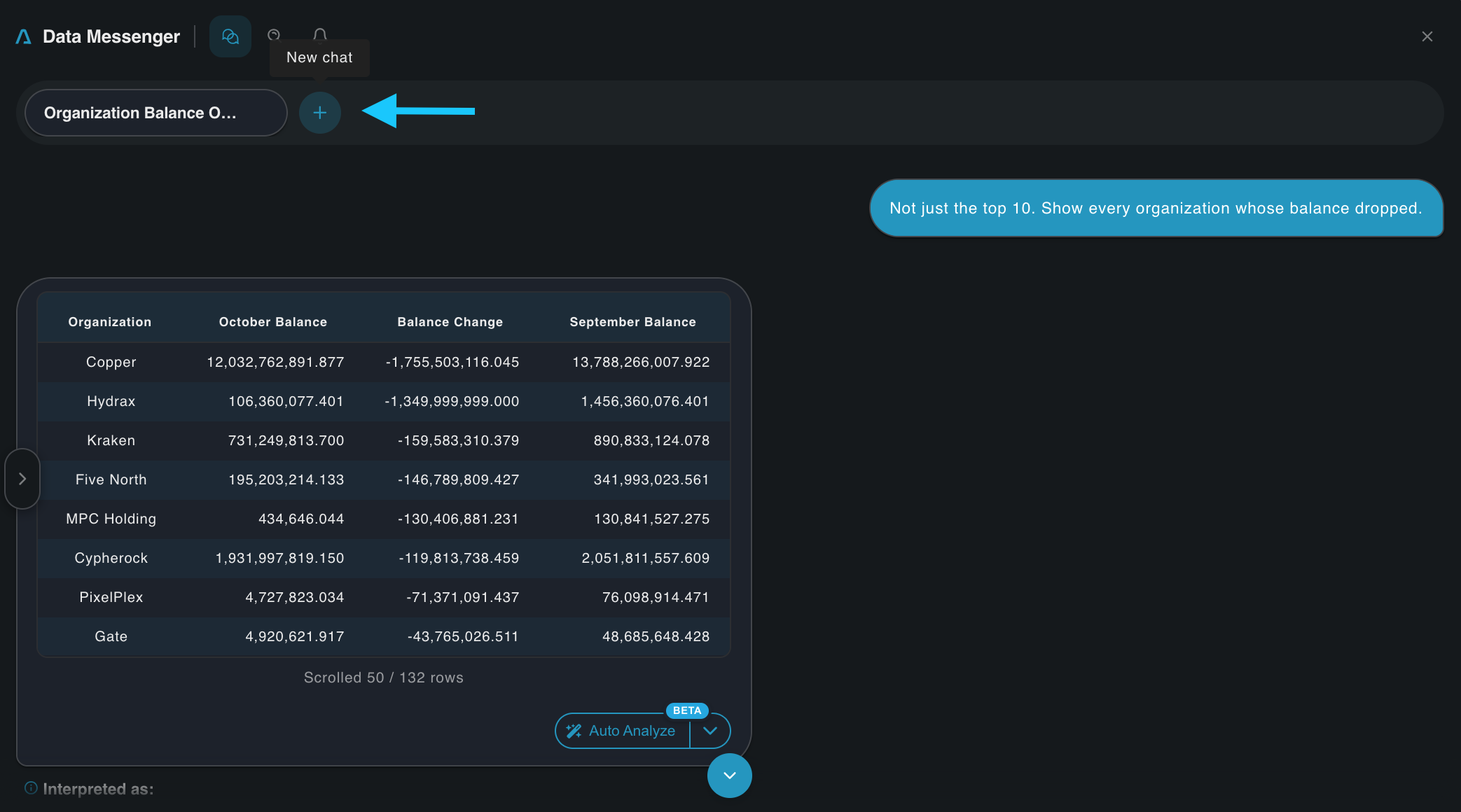
To start a new chat, select + (New chat) in the tab bar at the top of Data Messenger.
FAQ
Should I correct the result or start over? Correct it when you're on the same topic and only one part is off. Start a new chat when you're asking about different data, or when the result keeps drifting after a couple of corrections.
Does it use questions from my other chats? No. Follow-ups only build on the questions in the current chat.
The interpretation is right, but the numbers look wrong. Correcting won't help here. Report a problem and choose The data is incorrect.
Want to see it in action?Book a demo and we’ll walk you through follow-ups. Book a demo →
Updated 1 day ago